



You install Python on Windows, open a terminal, type python and get this:
C:\>python --version
'python' is not recognized as an internal or external command,
operable program or batch file.
It almost never means Python failed to install. It means the terminal looked in every folder on your
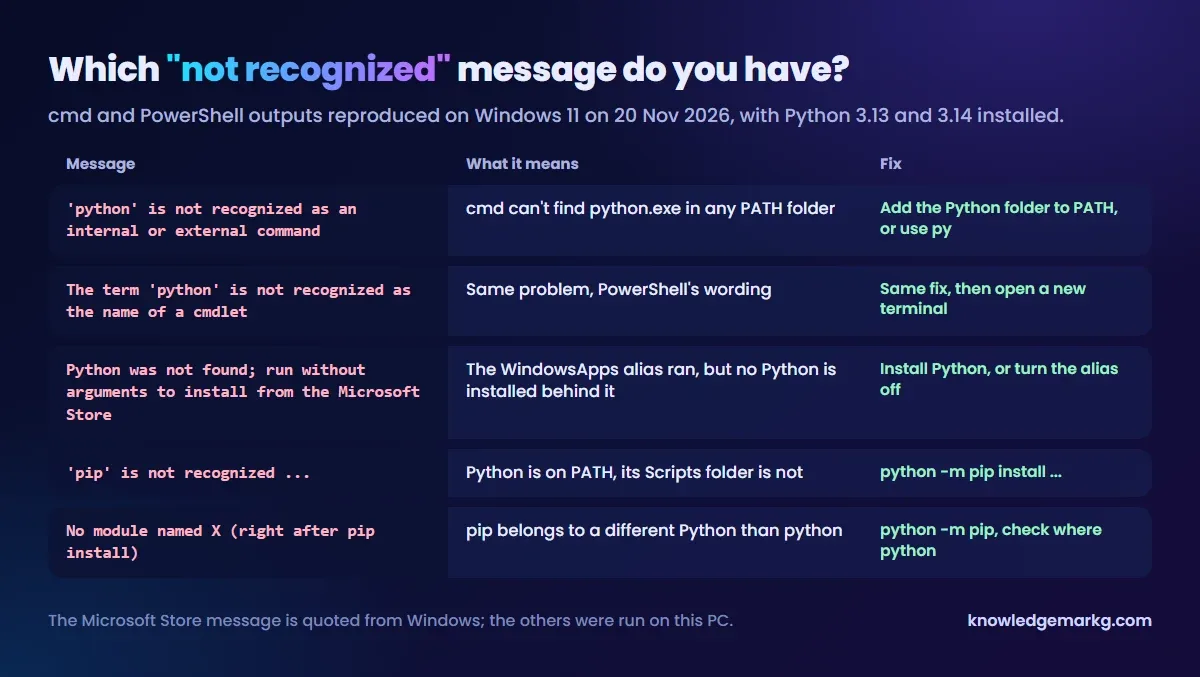
PATH and none of them had a python.exe in it. The fix depends on which of five similar messages
you have, so this post starts there.
I reproduced each one on 20 November 2026 on a Windows 11 PC that has Python 3.13 (classic installer) and
Python 3.14 (the new Python install manager) side by side. I didn't change any system settings. Instead I ran each
command with a cut-down PATH, so every output below is copied from a real terminal. The one exception is
the Microsoft Store message, which I couldn't trigger on this PC. That's explained in its section.
First, check whether Python is installed at all
Before you touch any settings, try the launcher:
C:\>py --version
Python 3.14.3

C:\>py -c "import sys; print(sys.executable)"
C:\Users\you\AppData\Local\Python\pythoncore-3.14-64\python.exe
With my PATH stripped down to just C:\Windows, python failed but py
still worked. On this PC the classic installer's launcher is C:\Windows\py.exe, a folder that is always
on PATH, and the install manager provides py as an app alias. If py answers, Python is installed and only PATH is
wrong. The second command prints where the real python.exe lives, and that folder is what you'll add. If
py is also "not recognized", Python isn't installed. Get it from python.org (next section) rather than
searching for a fix.
'python' is not recognized as an internal or external command (cmd)
This is cmd's wording. Python is installed, but its folder isn't on PATH, usually because the
"Add python.exe to PATH" box in the installer wasn't ticked. You have two ways out:
- Just use
py.py script.py,py -m pip install ...andpy -m venv .venvall work without anyPATHchange. For many people this is the whole fix. - Add the folder to
PATH. Press Start, type "environment variables", open Edit environment variables for your account, selectPath, click Edit, then New, and add the folder thatsys.executableprinted. The usual folders are:
# Python install manager (python.org's recommended installer since 3.14)
%LocalAppData%\Python\bin

# classic python.org installer, "just for me"
%LocalAppData%\Programs\Python\Python313
%LocalAppData%\Programs\Python\Python313\Scripts
Then close the terminal and open a new one. A terminal reads PATH once, when it starts, so the old
window keeps saying "not recognized" even after the fix is correct. That catches a lot of people.
The Python docs now recommend the Python install manager from python.org. They say the
traditional full installer is "deprecated since 3.14 and will not be produced for Python 3.16 or later". The
install manager asks once whether to add %LocalAppData%\Python\bin to PATH. Say yes.
The term 'python' is not recognized as the name of a cmdlet (PowerShell)
PS C:\> python --version
python : The term 'python' is not recognized as the name of a cmdlet, function, script file, or
operable program. Check the spelling of the name, or if a path was included, verify that the path
is correct and try again.
    + CategoryInfo          : ObjectNotFound: (python:String) [], CommandNotFoundException
Same cause, PowerShell's wording: CommandNotFoundException means no folder on PATH holds a
python.exe. The fixes are the same as above. One PowerShell-only trap: if Python's folder is on
PATH and you still get this, check that you aren't typing python3. The classic installer
doesn't create a python3.exe. The install manager does, but its docs say it is "not meant to be widely
used or recommended". On Windows, use python or py.
"Python was not found; run without arguments to install from the Microsoft Store"
This message comes from Windows, not from Python:
Python was not found; run without arguments to install from the Microsoft Store,
or disable this shortcut from Settings > Manage App Execution Aliases.
Windows ships a python.exe placeholder in %LocalAppData%\Microsoft\WindowsApps, which is on
PATH by default. If no real Python comes earlier in PATH, the placeholder runs. With arguments it
prints this message, and with none it opens the Store page. I couldn't reproduce it here because on this PC the
WindowsApps aliases point at the installed Python install manager, which is how the install manager provides
python and py. So the text above is Windows' own message, quoted as users report it.
The fixes:
- No Python installed: install the Python install manager from python.org. Its aliases replace the placeholder.
- Python installed with the classic installer: put its folder above WindowsApps in
Path, or open Start, search "Manage app execution aliases" and switch off the two "App Installer python.exe / python3.exe" entries. - Using the install manager and
pythonstill opens the Store: the Python docs' advice is to open "Manage app execution aliases" and make sure the "Python (default)" aliases are on. If they already are, switch them off and on again. Also check that WindowsApps is still onPATH, because the install manager's commands live there.
'pip' is not recognized as an internal or external command
This one has its own cause. I put C:\Python313 on PATH but left out its
Scripts folder, which is a common half-finished manual fix:
C:\>python --version
Python 3.13.5

C:\>pip --version
'pip' is not recognized as an internal or external command,
operable program or batch file.

C:\>python -m pip --version
pip 25.3 from C:\Python313\Lib\site-packages\pip (python 3.13)
pip.exe lives in Scripts, not next to python.exe. You can add Scripts to
PATH as well, but there's a better habit: always run pip through Python.
python -m pip install requests        # installs for exactly the python you run
py -3.14 -m pip install requests      # or pick the version explicitly
python -m pip --version               # shows which Python pip belongs to
python -m pip works whenever python works, and it can't install into the wrong Python. That
second point matters, as the next section shows.
pip install worked, but "No module named ..." anyway
If you have more than one Python, python, py and pip can each point at a different
one. On my PC:
C:\>where python
C:\Python313\python.exe
C:\Users\you\AppData\Local\Microsoft\WindowsApps\python.exe
C:\Users\you\AppData\Local\Python\bin\python.exe

C:\>python --version
Python 3.13.5

C:\>py --version
Python 3.14.3
python runs 3.13, because C:\Python313 comes first in PATH. py runs 3.14,
the install manager's default. And pip is 3.13's. Pillow is installed for 3.13 only, so the same
two-line script behaves differently depending on the command:
C:\>python check.py
PIL 10.4.0

C:\>py check.py
Traceback (most recent call last):
  File "check.py", line 1, in <module>
    import PIL
ModuleNotFoundError: No module named 'PIL'
Nothing is broken. The package was installed for one interpreter and the script ran on the other. The fix is
python -m pip (or py -m pip) with the same command you use to run the script, and
where python shows you which Python runs first. A virtual environment removes the question
entirely:
py -m venv .venv
.venv\Scripts\activate
python -m pip install -r requirements.txt
Inside an activated venv, python and pip both belong to the venv, whatever PATH
says.
Python not recognized in the VS Code terminal
VS Code's integrated terminal inherits PATH from VS Code, and VS Code read it when it started. If you
changed PATH while VS Code was open, close all VS Code windows and start it again. Opening a new
terminal tab isn't enough. If it still fails, open a normal cmd window and run where python. If it fails
there too, the problem is PATH, not VS Code. For running and debugging, VS Code uses the interpreter you
choose with Python: Select Interpreter (Ctrl+Shift+P). Pick the same one you install packages into.
Quick checklist
py --versionworks? Python is installed. Usepy, or add the folder fromsys.executabletoPATH.- Changed
PATH? Open a new terminal, or restart VS Code completely. - Store message? Install Python from python.org, or fix the app execution aliases.
pipnot recognized? Usepython -m pip.- "No module named" after installing? Compare
where pythonwithpython -m pip --version, or use a venv.
Once Python runs, local AI tools are a common next step. My guide to running DeepSeek R1 locally on Windows, macOS and Linux picks up from there.



Join the conversation
No comments yet — be the first to share what you think.