


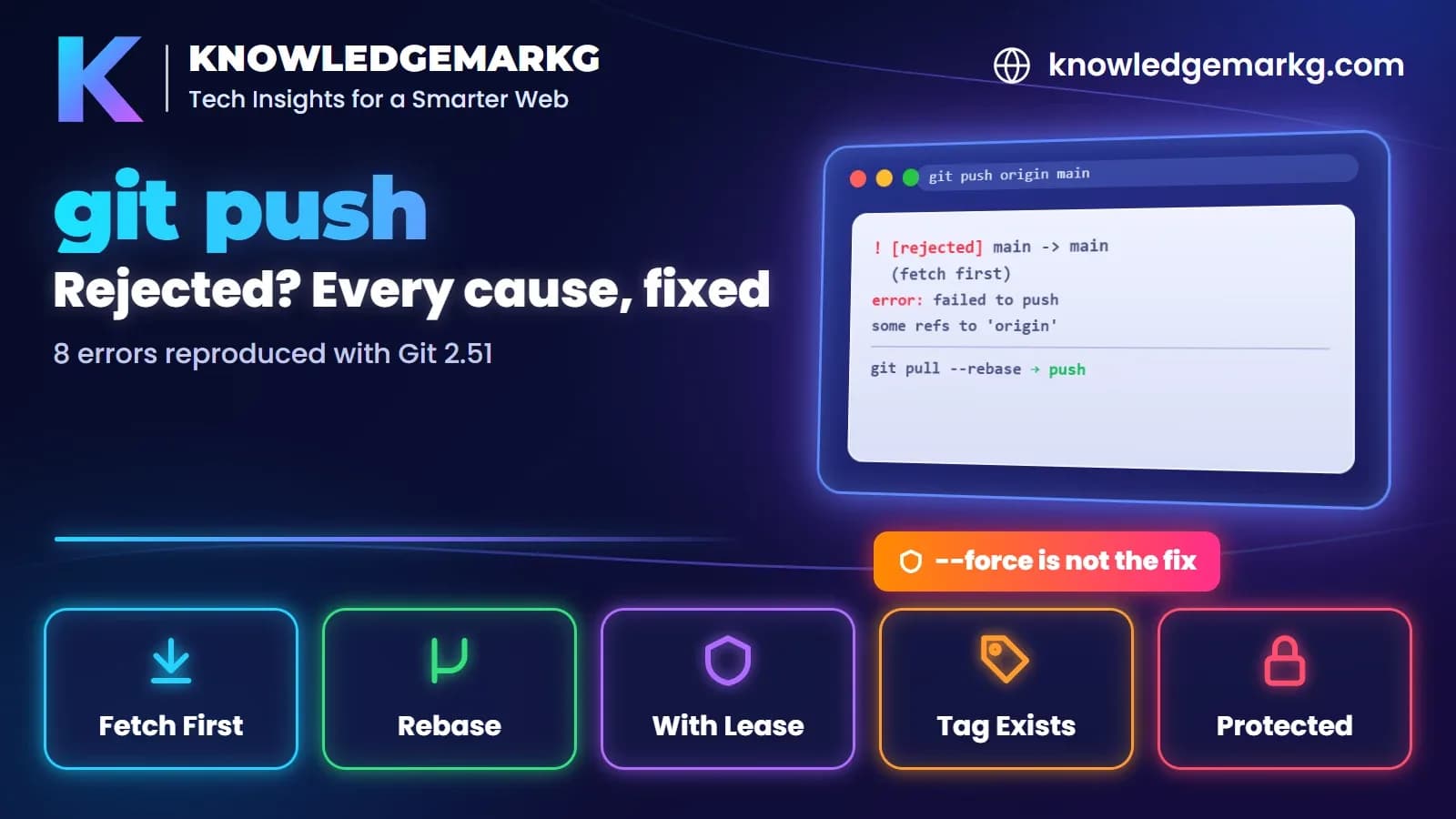
"error: failed to push some refs to" is Git's catch-all line for "the server didn't accept your push". It tells
you nothing on its own. The useful part is the label in brackets one line above it:
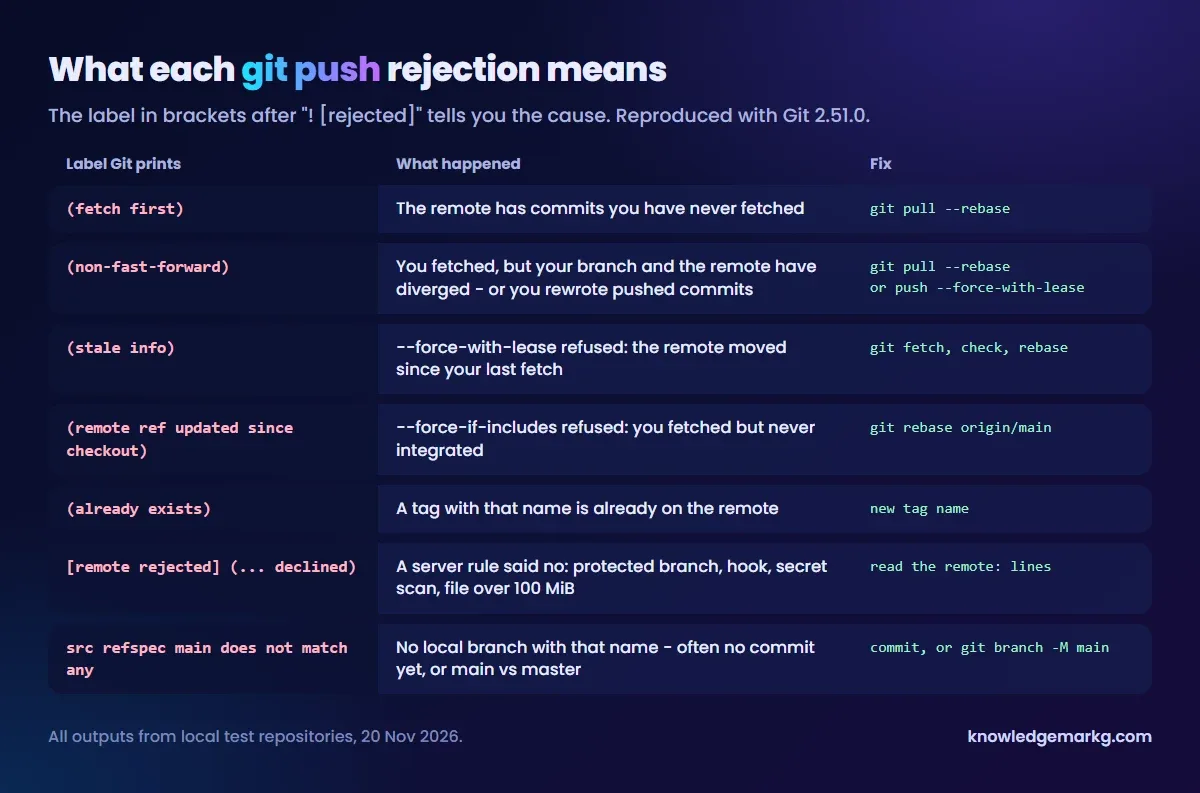
(fetch first), (non-fast-forward), (stale info), (already exists)
or [remote rejected]. Each label has a different cause and a different fix, and only one of them is
ever fixed by forcing.
To get the messages right I reproduced every case on 20 November 2026 with Git 2.51.0, using local test
repositories and a bare repository as the remote. GitHub, GitLab and Bitbucket print the same client-side lines,
because they come from your Git, not from the server. Repository URLs below are shortened to
github.com:you/app.git.
(fetch first): the remote has commits you don't have
This is the most common one. Someone else pushed, or you pushed from another machine, or you edited a file on GitHub's website, so the remote branch has a commit your clone has never seen:
$ git push origin main
To github.com:you/app.git
 ! [rejected]        main -> main (fetch first)
error: failed to push some refs to 'github.com:you/app.git'
hint: Updates were rejected because the remote contains work that you do not
hint: have locally. This is usually caused by another repository pushing to
hint: the same ref. If you want to integrate the remote changes, use
hint: 'git pull' before pushing again.
Git refuses because accepting your push would throw that commit away. The fix is to bring it in first. I prefer a rebase here, because it puts your local commits on top and keeps the history in a straight line:
git pull --rebase origin main
# fix any conflicts, then: git add <file> && git rebase --continue
git push origin main
A plain git pull (merge) also works and creates a merge commit. Both are safe. What you should not do
is git push --force. That deletes the other commit from the remote, and nobody gets a warning.
(non-fast-forward): your branch and the remote have diverged
Same root cause, different wording. You get (non-fast-forward) instead of (fetch first)
when your clone already knows about the remote commit (you ran git fetch, or an editor did it for
you) but your branch doesn't contain it:
 ! [rejected]        main -> main (non-fast-forward)
error: failed to push some refs to 'github.com:you/app.git'
hint: Updates were rejected because the tip of your current branch is behind
hint: its remote counterpart. If you want to integrate the remote changes,
hint: use 'git pull' before pushing again.
$ git status -sb
## main...origin/main [ahead 1, behind 1]"ahead 1, behind 1" means you have one commit the remote doesn't, and the remote has one you don't. The fix is
the same git pull --rebase.
The other way to get this message is to change commits you've already pushed: git commit --amend,
an interactive rebase, a squash, or git reset. In my test, amending a pushed commit produced exactly the
message above. Here the remote isn't ahead of you. Your new commit simply replaces the old one instead of building
on it. If the branch is yours alone, such as a feature branch for a pull request, the fix is a careful force push
(next section). If others use the branch, don't rewrite it. Make a new commit instead.
"Need to specify how to reconcile divergent branches"
When you follow the hint and run git pull, current Git may stop with this instead of pulling:
hint: You have divergent branches and need to specify how to reconcile them.
...
fatal: Need to specify how to reconcile divergent branches.
Git won't guess whether you want a merge or a rebase. Pick one once and it stops asking:
git config --global pull.rebase true   # rebase your local commits on top
# or
git config --global pull.ff only       # refuse anything but a fast-forward
A detail that confused me while testing on Windows: Git for Windows writes pull.rebase false into its
system-wide config during installation. On a default Windows install, git pull quietly makes a merge
commit and you never see this message. Without that setting, you get the message above. Run
git config --show-origin --get-regexp pull to see what applies on your machine.
Force pushing safely: --force-with-lease and --force-if-includes
After a rebase or an amend on your own branch, a force push is the right tool. Just don't use bare
--force. Use:
git push --force-with-lease --force-if-includes origin my-branch--force-with-lease only overwrites the remote branch if it is still where your last fetch saw it.
When someone had pushed in the meantime, my test push was refused with a new label:
 ! [rejected]        main -> main (stale info)
error: failed to push some refs to 'github.com:you/app.git'
(stale info) means "the remote moved since you last looked". Fetch, look at what arrived
(git log HEAD..origin/my-branch), and rebase onto it before you try again.
There is a trap here, and my test hit it. If you run git fetch first, your view of the remote is up to
date, so --force-with-lease lets the push through, even though you never looked at the new commit. In
the test, that push deleted the other person's commit. Many editors fetch in the background, so this happens
without you running anything. --force-if-includes (Git 2.30 and later) closes that gap. It also checks
that the remote commit is part of your branch's history, and the same push was refused:
 ! [rejected]        main -> main (remote ref updated since checkout)
error: failed to push some refs to 'github.com:you/app.git'
hint: Updates were rejected because the tip of the remote-tracking branch has
hint: been updated since the last checkout.
To make that the default, set git config --global push.useForceIfIncludes true.
(already exists): a tag with that name is on the remote
 ! [rejected]        v1.0 -> v1.0 (already exists)
error: failed to push some refs to 'github.com:you/app.git'
hint: Updates were rejected because the tag already exists in the remote.
Tags are meant to stay put. If you moved a tag locally (git tag -f v1.0) and push it, Git refuses.
The clean fix is a new version number, v1.0.1. If you really need to move a published tag, for example
because nobody has used the release yet, push it with git push --force origin v1.0, and tell everyone who
fetched it, because their clones keep the old one.
[remote rejected]: the server's rules said no
Note the different wording: [remote rejected] instead of [rejected]. Your Git was happy
to push. The server received the commits and then refused them. The reason is in the lines that start with
remote:, just above. In my test a server-side hook printed one line:
remote: main is protected: open a pull request
To github.com:you/app.git
 ! [remote rejected] main -> main (pre-receive hook declined)
error: failed to push some refs to 'github.com:you/app.git'
On hosted Git, the usual causes are:
- A protected branch. Direct pushes to
mainare blocked, or force pushes are. Push to a new branch and open a pull request:git switch -c fix-login, thengit push -u origin fix-login. - A secret in a commit. GitHub's push protection blocks pushes that contain things like access
tokens and lists the commit and file path in the
remote:lines. Removing the secret in a new commit is not enough, because it is still in the old commit. Take it out of history (below), then rotate the key, because it has left your machine. - A file that is too big. GitHub blocks files larger than 100 MiB and warns from 50 MiB. As with secrets, deleting the file in a later commit doesn't help. Remove it from the commit that added it, or use Git LFS.
- No permission. You can read the repository but not write to it, or you are signed in as a
different account. Check with
git remote -vwhich URL you are pushing to.
If the secret or the big file is only in your last commit, amending is enough:
# the secret is only in the last commit
git rm --cached .env
echo ".env" >> .gitignore
git commit --amend --all --no-edit
git push origin main
If it is further back, start an interactive rebase from the parent of the commit that added it, mark that commit
as edit, remove the file, and continue. The same pattern stops a .env file being committed in
the first place. My post on why .env.local overrides
.env.production in Next.js covers which env files belong in Git and which don't.
src refspec main does not match any
This one never reaches the server. Git can't find a local branch with the name you asked to push:
$ git push origin main
error: src refspec main does not match any
error: failed to push some refs to 'github.com:you/app.git'
I got it in two ways. First, by pushing from a new repository before making a commit, because a branch doesn't
exist until it has a commit. Second, by typing git push origin master in a repository whose branch is
called main. The reverse is just as common: Git 2.x still names the first branch master
unless init.defaultBranch is set, and then GitHub's suggested git push -u origin main fails.
git branch --show-current     # which branch do you actually have?
git log --oneline -1          # is there a commit at all?

git add . && git commit -m "First commit"   # no commit yet
git branch -M main                          # local branch is called master
git push -u origin main
A close relative is fatal: 'upstream' does not appear to be a git repository. It means the remote
name is wrong, not the branch. git remote -v lists the names you actually have, usually just
origin.
A quick way to read any push error
- Ignore "failed to push some refs". It is the same line for every cause.
- Find the line with
!and read the label in brackets. [rejected]means your Git refused: integrate the remote changes, or force-with-lease on your own branch.[remote rejected]means the server refused: read theremote:lines.- No
!line, only "src refspec": the problem is the branch name or a missing commit.
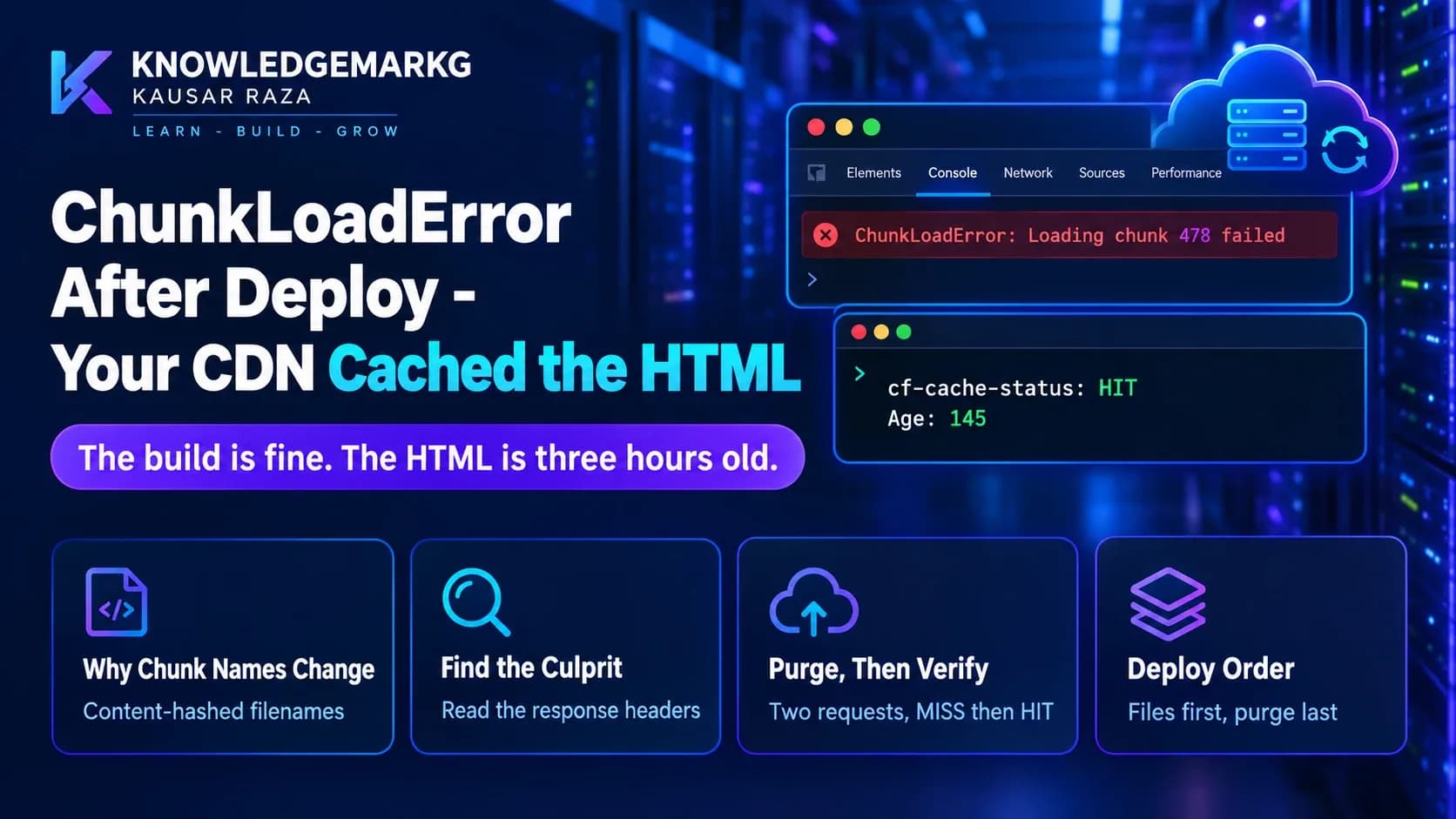
I deploy this site by building a package and uploading it by hand, so there is no CI between a push and production here. If your host deploys on every push and you then see stale pages, that is a cache problem, not a Git one. See ChunkLoadError after a Next.js deploy.


Join the conversation
No comments yet — be the first to share what you think.