


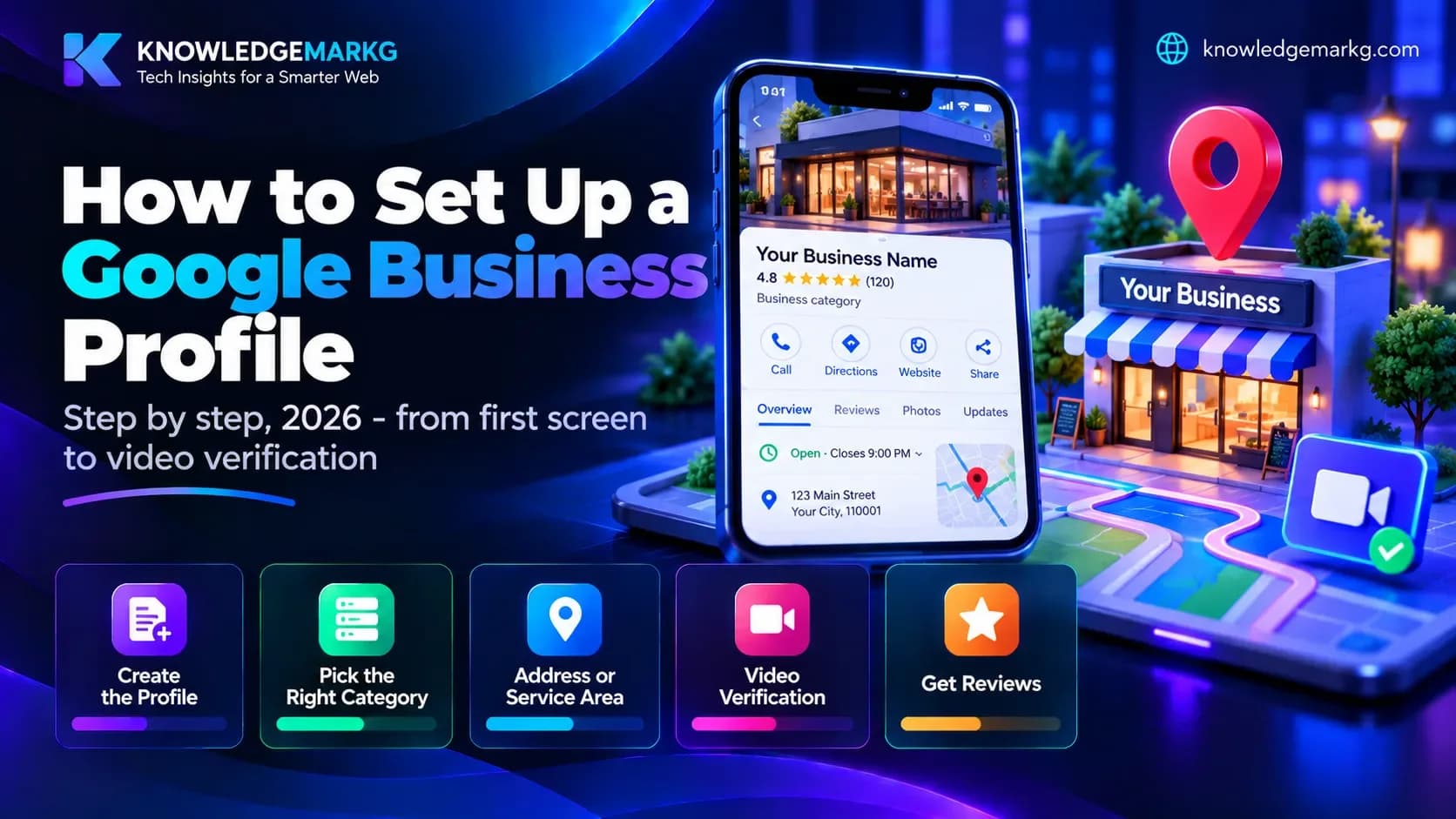
If you run a local business - a shop, a clinic, a salon, a tutoring service, a trade - a Google Business Profile is the best value marketing you will ever get, because it costs nothing. When someone searches for something "near me", Google shows a map with three businesses above every ordinary result. You do not need a website to appear there. You need a well set-up Business Profile.
I set these up for clients as part of almost every small-business website I build, and the same handful of mistakes come up every time. This guide walks through the whole process in the order Google asks for things, with the decisions that actually matter flagged along the way.
What a Google Business Profile is (and what it is not)
It is the listing for your business that appears in Google Maps and in local search: name, phone number, opening hours, photos, services and reviews. It used to be called Google My Business; the name changed, the product did not.
Three Google products get confused here, so to be clear:
- business.google.com - the Business Profile. Maps and local search. Free.
- workspace.google.com - business email, Drive and Docs. Paid, and unrelated to your listing.
- Search Console - search data for a website you own. Free, but only useful once you have a site.
You want the first one.
Have these ready before you start
- A Google account you will keep. Use the one you check every day. Moving ownership later is possible but fiddly, and an account set up by a long-gone employee is a common way businesses lose control of their own listing.
- Your business name exactly as it appears on your signage, invoices and registration.
- A phone number you actually answer.
- Your website address, if you have one.
- Proof that the business is real - a sign, branded van, business cards, an invoice book, a utility bill or lease in the business name. You will need to show some of this on camera during verification.
Step 1 - Create the profile and enter your name
Go to business.google.com, choose Manage now and sign in. Then type your business name.
This is where the first, most expensive mistake happens. It is tempting to write "Smith Plumbing - Best Emergency Plumber in Leeds". Do not. Google treats keywords in the business name as spam, and keyword-stuffed names are one of the most common reasons profiles are suspended. Reinstating a suspended profile can take weeks. Write "Smith Plumbing" and nothing else.
Step 2 - Choose the primary category carefully
The primary category matters more than anything else you enter, because it decides which searches you can appear for. You only get one, so pick the one that describes what most of your customers come to you for:
- Dentist - Dental clinic
- Clothes shop - Clothing store
- Web designer - Website designer
- Driving instructor - Driving school
After verification you can add up to nine secondary categories for the other things you do. Use them, but do not pad the list with categories you barely serve.
Step 3 - The address question (read this one twice)
Google asks whether you have a location customers can visit.
If you have a shop, office or clinic that customers come to, answer yes and enter the full address.
If you work from home or go to your customers - plumbers, electricians, cleaners, mobile hairdressers, freelancers, tutors - answer no. That makes you a service-area business: Google still needs your address for verification, but it is not shown publicly.
This is the mistake I see most often. Answer yes when you work from home and your home address goes on Google Maps for anyone to find. So yes - you can have a Google Business Profile without showing an address, and for home-based businesses that is the correct setup, not a workaround.
Step 4 - Set a realistic service area
Service-area businesses list the towns, cities or postcodes they cover. Keep it focused: the five or six areas you genuinely serve. Listing an entire county or state does not make you rank everywhere - it tends to make you rank well nowhere, because Google favours businesses close to the person searching.
Step 5 - Contact details, and why they must match everywhere
Add your phone number and website. Then make sure your name, address and phone number are written identically everywhere they appear online - your website, Facebook page, Yelp, industry directories. "Smith Plumbing Ltd, 0113 496 0000" in one place and "Smith Plumbers, +44 113 4960000" in another looks, to Google, like it might be two businesses. This consistency (often called NAP - name, address, phone) is one of the quieter local ranking factors, and one of the easiest to get right.
Step 6 - Verification
Your profile does not appear on Google until it is verified. Most new profiles are now asked for video verification: a single continuous clip, usually under two minutes, recorded on your phone. Google typically wants to see, without cuts:
- Where you are - the street outside, your signage, or for a service-area business, your branded vehicle or work area.
- That the business operates - equipment, stock, a till, tools of the trade.
- That you manage it - unlocking the premises, opening the register, or showing a document in the business name.
Practical advice: plan the route before you press record, film in daylight, keep moving slowly, and do not stop and restart halfway through - a broken clip is the most common reason a video is rejected. Some businesses are offered other methods (phone, email or a postcard); use whichever Google offers you.
Reviews of the video usually take a few days. If it is rejected you can try again at no cost.
Step 7 - Finish the profile properly
A verified but empty profile ranks below a complete one. Once you are in:
- Opening hours, including holiday hours. Wrong hours generate the angriest reviews.
- A plain description of what you do and where. No phone numbers or links in it - Google strips them.
- Services or products with short descriptions and prices if you can give them.
- Real photos: the outside of the premises (so people recognise it), inside, your team, your work. Ten or so good ones beat fifty blurry ones. Stock photos are worse than none.
Reviews: how to get them without breaking the rules
Reviews move rankings and clicks more than anything else on the profile. From the profile dashboard you can copy a short review link - send it to customers after a job goes well, or print it as a QR code on your receipts.
What not to do: never offer discounts or gifts in exchange for reviews, never review yourself or ask staff to, and never buy them. Google filters these aggressively and can remove every review on the profile, or suspend it. Reply to every review, the bad ones especially and politely - future customers read the replies.
Mistakes that get profiles suspended
- Keywords or locations stuffed into the business name.
- Showing a home address when no customers visit it.
- Using a virtual office or PO box as your address.
- Creating a second profile for the same business to cover another area.
- Changing the name, address and category all at once soon after verifying - make one change at a time.
Setting one up for a client
If you are an agency or freelancer, do not create the profile in your own account. Have the business owner create it (or create it with them on a call), then ask them to add you as a manager. The owner should always hold the primary ownership - the same principle as keeping the domain in their name, which I cover in ten questions to ask a web developer before hiring.
Profile done - what next?
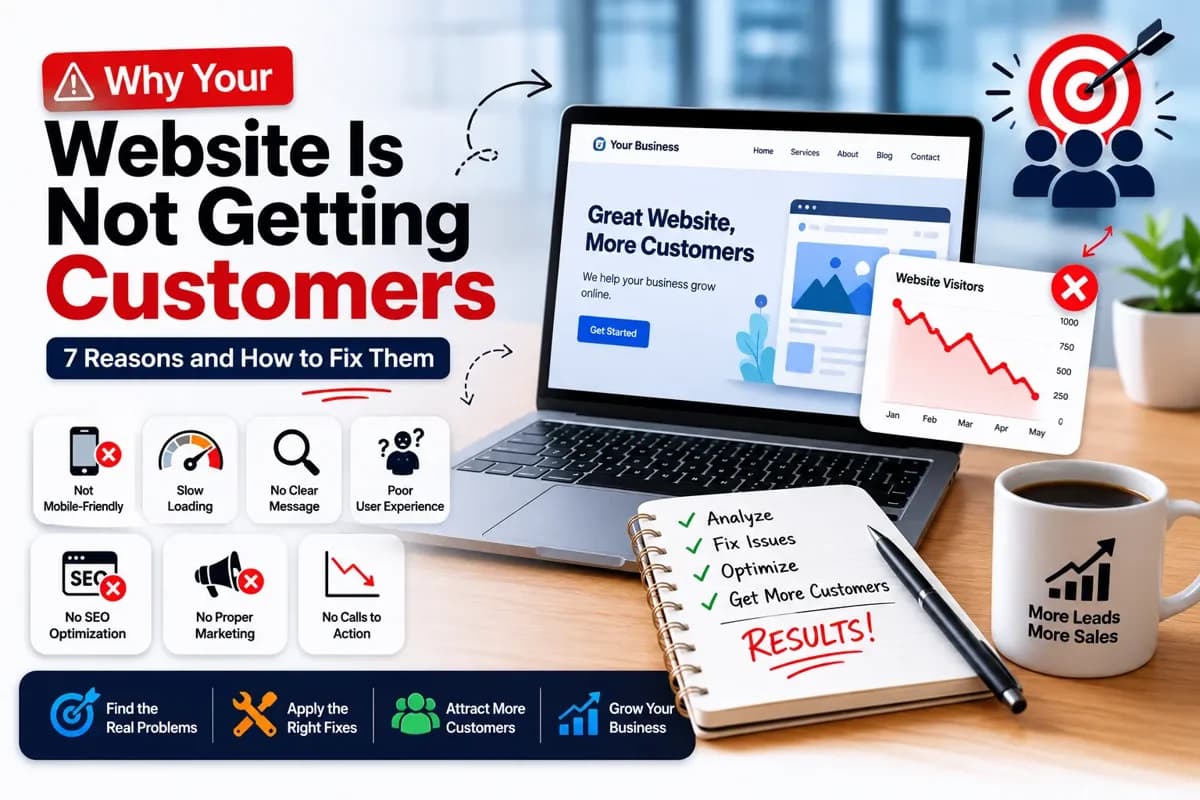
A Business Profile gets you found; a website is where people decide to call you. If your profile is getting views but not enquiries, the problem is usually what happens after the click - see why your website is not getting customers and how to take a small business online. And if you would rather have the website side handled, that is what I do.

Join the conversation
No comments yet — be the first to share what you think.