


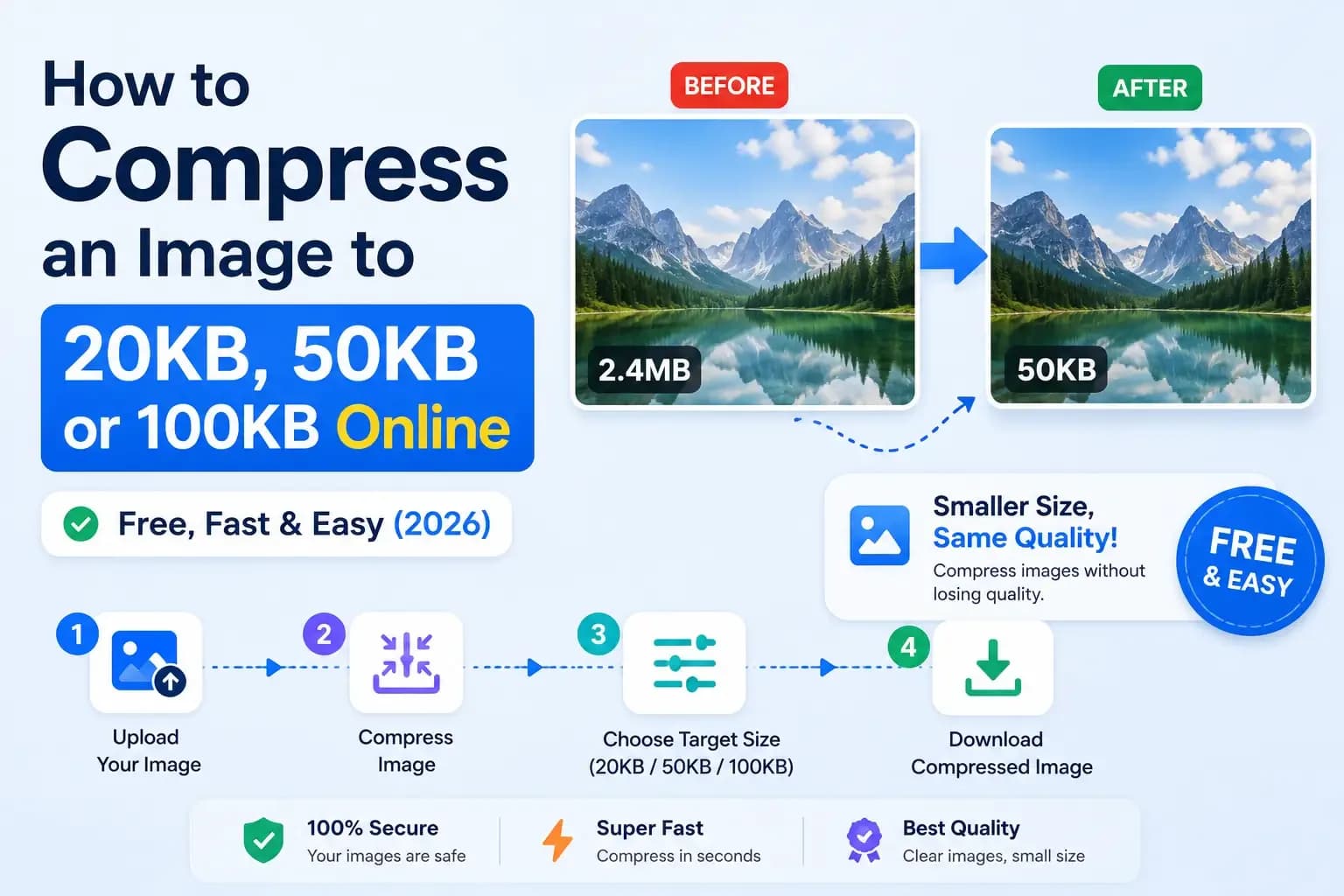
You're filling out an online exam or job form, you upload your photo, and up pops that dreaded red message: "Image file size is too large." Suddenly your photo needs to be under 50KB, your signature under 20KB, and you have no idea how to shrink it without turning it into a blurry mess. If that's you right now — relax. This takes about two minutes, and it's completely free.
Here's exactly how to compress an image to 20KB, 50KB, or 100KB online, keep it looking clean, and get past that upload error for good.
Quick answer: how to compress an image to a target KB size
- Open a free image compressor (like our Image Compressor).
- Upload your photo or signature.
- Lower the quality/compression until the file size drops below your target — 20KB, 50KB or 100KB.
- Download the compressed image and upload it to your form. Done.
That's the whole process. Now let's do it properly so your photo still looks sharp and gets accepted the first time.
Step-by-step: compress your image (with quality intact)
The trick to shrinking a photo without making it blurry is to do two things in the right order: first resize the dimensions, then compress. Here's how:
- Open the free Image Compressor. It runs right in your browser — nothing is uploaded to a server, so your photo stays private.
- Add your image. Drag in your JPG or PNG photo.
- Resize the dimensions if it's huge. A 4000×3000 phone photo is overkill for a form. Bringing it down to something like 200×230 pixels alone cuts most of the file size — before you lose any real quality.
- Adjust the compression/quality slider. Slide it down and watch the file size fall. Stop the moment it's just under your target (say 49KB for a 50KB limit).
- Download and upload. Save the new image and submit it to your form.
Typical photo & signature sizes for Indian exam forms
Most government and exam forms in India ask for something close to the sizes below. Always check your specific exam's official notification — the exact numbers vary — but this is the usual ballpark:
| What | Typical file size | Typical dimensions |
|---|---|---|
| Photograph | 20 KB – 50 KB | ~200 × 230 px |
| Signature | 10 KB – 20 KB | ~140 × 60 px |
| Documents / certificates | up to 100 KB – 200 KB | Varies |
How to compress an image to exactly 20KB, 50KB or 100KB
The method is the same for any target — you're just aiming for a different number:
- To reach 20KB (small photos & signatures): resize to small dimensions first (like 140×60 for a signature), then push the quality slider down until you're under 20KB.
- To reach 50KB (most exam photos): resize to around 200×230, then compress. 50KB is comfortable for a clear passport-style photo.
- To reach 100KB (documents): you usually don't even need to drop the quality much — a light compression gets most scans under 100KB while staying readable.
Golden rule: resize the pixel dimensions first, compress second. Most people skip the resize step, crush the quality to hit the file size, and end up with a blurry photo. Resizing does the heavy lifting for free.
How to compress an image without losing quality
"Without losing quality" really means "without losing noticeable quality." A few habits make a huge difference:
- Save as JPG, not PNG, for photos. JPG is far smaller for photographs at the same visible quality.
- Don't over-compress. Stop as soon as you're under the limit — going lower just hurts quality for no reason.
- Start from the original, not a screenshot or a WhatsApp-forwarded copy, which is already degraded.
- Resize to the required dimensions instead of forcing the quality down to the floor.
Compressing your signature
Signatures are usually the strictest (often under 20KB). Scan or photograph your signature on white paper, crop it tight, convert it to a small size (around 140×60 px), and compress. Because a signature is mostly white space, it compresses down easily. The same Image Compressor handles this in seconds.
Doing it on your phone
No laptop? No problem. The Image Compressor works fully on mobile browsers — Chrome, Safari, any of them. Just open it on your phone, add the photo from your gallery, compress, and download. Perfect for filling forms on the go.
Common upload errors (and the quick fix)
- "File size too large" → your image is over the KB limit. Compress it lower.
- "Invalid dimensions" → resize the width & height to what the form asks for.
- "Invalid file type" → convert it to JPG or PNG (whatever the form accepts).
- Form needs a PDF? Combine your images into a PDF with our free JPG to PDF tool.
That's it — you're done
Compressing an image to 20KB, 50KB or 100KB isn't complicated once you know the trick: resize first, compress second, save as JPG. Do that and your photo will slip under any form's limit while still looking clean and professional.
Bookmark the free Image Compressor — exam season, job applications, KYC forms, you'll need it again. And while you're here, our other free tools (JPG to PDF, Word to PDF, and more) cover pretty much everything else a form might throw at you. All free, all private, no sign-up.


Join the conversation
No comments yet — be the first to share what you think.