


An upload form says "PDF, maximum 200 KB" and your file is 4 MB. You run it through a compressor, and it comes back at 3.9 MB. Or it shrinks, but the text turns to mush. Or, the one nobody warns you about, it comes back bigger.
All three happen for the same reason. "Compress PDF" covers two completely different operations, and which one works depends on what is inside your PDF. I tested three typical files with our free Compress PDF tool at four settings each. Below are the real sizes, how many pages actually fit in 100 KB, 200 KB and 500 KB, and what to do when a PDF refuses to get any smaller.
The short answer: Compress a PDF to 100KB, 200KB or 500KB
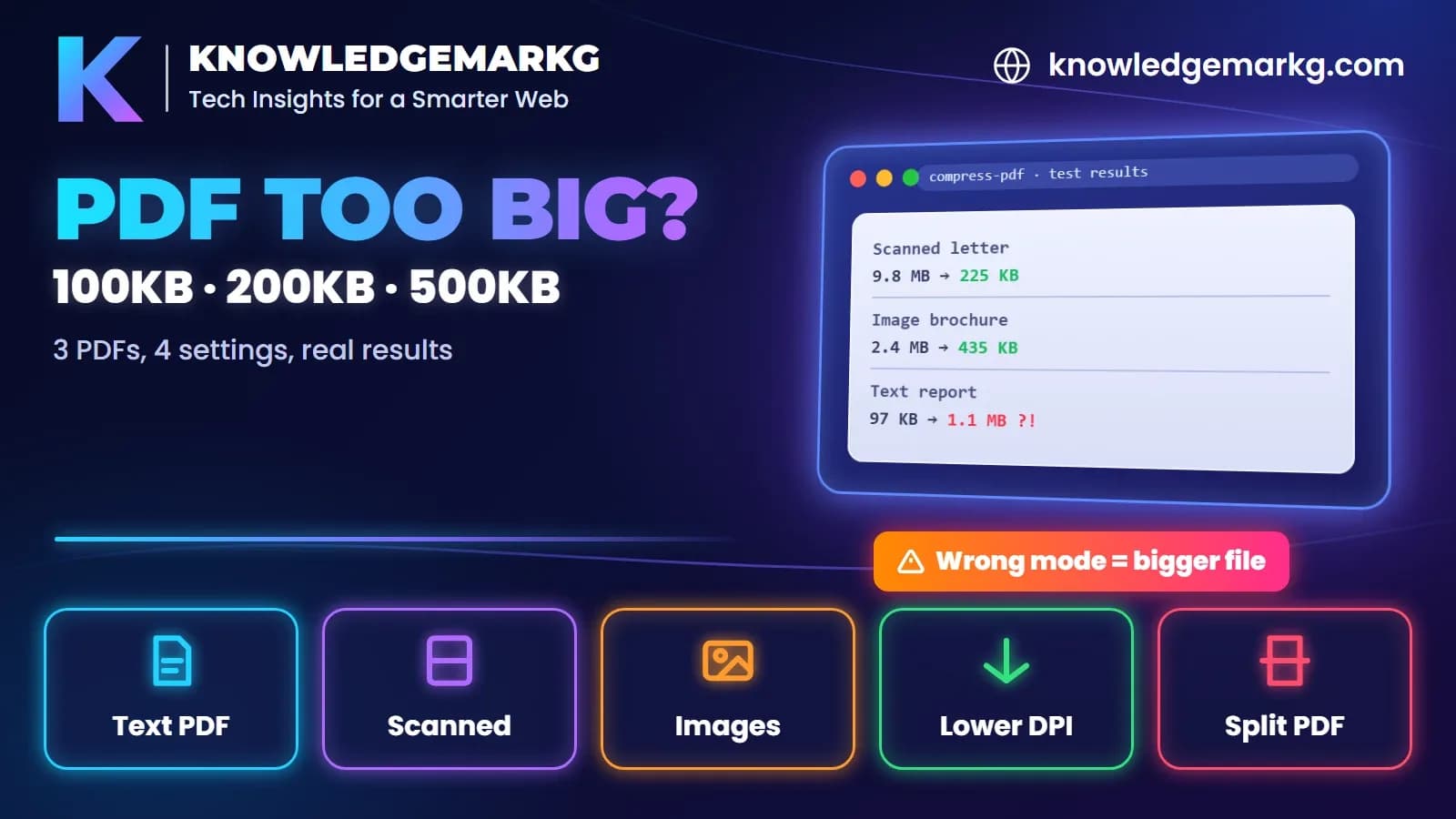
- Scanned documents (letters, ID copies, signed forms) shrink enormously: 9.8 MB went to 225 KB. Choose the mode that redraws pages as images, at a low DPI.
- Text PDFs exported from Word or Google Docs are usually small already. Redrawing them as images made my 97 KB file 1.1 to 3.1 MB. Use the lossless mode, or remove the pictures in the source document.
- Image-heavy PDFs (brochures, portfolios) fall somewhere in between: 2.4 MB went to 435 KB.
- If you still can't hit the limit, split the PDF or drop pages. No setting gets 20 scanned pages into 100 KB and keeps them readable.
Two kinds of PDF compression, and why it matters
A PDF is a container. Inside are text with its fonts, vector drawings, and images. A compressor can do one of two things to it:
1. Re-save it more efficiently (lossless). The text stays text, the fonts stay fonts. It packs the file's internal structure more tightly and drops leftover data. This is safe, but it rarely saves much: 5% on my text file, and nothing at all on the other two.
2. Redraw every page as a picture (lossy). Each page is rendered to an image at a DPI you choose, saved as a JPEG at a quality you choose, and put back into a new PDF. This is how a 10 MB scan becomes 200 KB. It also means the text is no longer text: you can't select it, search it or copy it, and screen readers can't read it. I checked this: the lossless output had 4,336 characters of text on page one, the redrawn one had zero.
Most online compressors pick between the two for you and don't say which. That is why the same site gives great results on one file and useless ones on the next. Our tool asks you instead: "Keep text as text" or "Redraw pages as images".
What I tested, and the real numbers
Three sample PDFs, built to match what people usually try to upload:
- Text report: 12 pages of plain text with the fonts embedded, the way Word exports it. 97.0 KB.
- Scanned letter: 4 A4 pages scanned at 300 DPI in colour, like a phone scanner app saves them. 9.8 MB.
- Image brochure: 6 pages, each with one large picture and some text. 2.4 MB.
Each went through the live tool four times: lossless, then image mode at the default (quality 65%, 108 DPI), at quality 50% and 72 DPI, and at the lowest it allows (quality 30%, 72 DPI).
| File | Original | Lossless | Image, q65 108 DPI | Image, q50 72 DPI | Image, q30 72 DPI |
|---|---|---|---|---|---|
| Text report (12 pages) | 97.0 KB | 91.9 KB | 3.1 MB | 1.4 MB | 1.1 MB |
| Scanned letter (4 pages) | 9.8 MB | 9.8 MB | 589.5 KB | 225.4 KB | 166.0 KB |
| Image brochure (6 pages) | 2.4 MB | 2.4 MB | 1.2 MB | 434.5 KB | 334.1 KB |
Each run took under 2 seconds, because the tool works in the browser and nothing is uploaded. On screen at 150%, the scan at quality 50% / 72 DPI was perfectly readable. At 30% it was still readable, with visible blocky edges around the letters. For a form that will be printed or zoomed into, I'd stay at 50% or above.
Why compressing a text PDF made it bigger
This surprises people, so here is what happens. In a text PDF, one line of text is stored as a few dozen bytes: the characters and a reference to the font. Once the page is redrawn as a picture, every letter becomes thousands of pixels, and a JPEG of a full page of small black text on white is one of the hardest images to compress. Twelve pages of text cost 97 KB as text and 1.1 MB as pictures, even at the lowest quality.
So if a text-only PDF is over your limit, the text is not what's making it big. Look for:
- Pictures pasted into the document at full camera resolution. A 12-megapixel phone photo can be 4 MB on its own. Shrink the images in Word or Docs first (Word: select a picture, then Picture Format, Compress Pictures), or resize them with an image compressor, then export the PDF again.
- Many embedded fonts. Every font family and weight is stored inside the file. Sticking to one or two standard fonts helps.
- "Export for print" settings that keep images at 300 DPI. Pick the smaller or "minimum size" option when saving.
How many pages fit in 100 KB, 200 KB and 500 KB?
From the scan results, a scanned A4 page comes out at roughly 41 KB at the lowest setting, 56 KB at quality 50% / 72 DPI and about 147 KB at the default. Those per-page figures are my own arithmetic from the table above, and a page with dense text, photos or colour will come out bigger. As a rough guide for scans:
| Upload limit | Scanned pages that fit, readable (q50, 72 DPI) | At the lowest setting (q30, 72 DPI) |
|---|---|---|
| 100 KB | 1 page | 2 pages |
| 200 KB | 3 pages | 4 pages |
| 500 KB | 8 pages | 12 pages |
| 1 MB | about 18 pages | about 24 pages |
A text PDF is a different story: my 12 text pages were already 97 KB, under 100 KB with no compression at all.
How to compress a PDF to a specific size, step by step
- Work out what the PDF is. Try to select a sentence. If you can, it's a text PDF. If the whole page highlights like a photo, it's a scan.
- Text PDF: run the lossless mode first. If it's still too big, the weight is in pictures or fonts: fix them in the original document and export again (see above). Don't redraw it as images.
- Scan or image-heavy PDF: open the Compress PDF tool, choose "Redraw pages as images", and start at quality 50% with Detail at 72 DPI.
- Check the result size against the limit, then open the file and zoom in on the smallest text.
- Adjust in one direction. Too big: lower the quality towards 30%. Plenty of room left: raise the quality or the DPI back up for a sharper copy. Changing the DPI moves the size much more than the quality does. I ran two extra tests on the scan to check: at 65% quality, going from 108 to 72 DPI took it from 590 KB to 272 KB, while 30% quality at 108 DPI still came out at 376 KB. A lower DPI at decent quality beats a high DPI at poor quality.
- Still too big at the lowest setting? You have too many pages for the limit. Split the PDF and upload the parts separately if the form allows it, or remove pages that aren't needed (blank backs of pages are a common culprit).
A tip for scans: the cheapest fix is at the scanning stage. Most scanner apps let you choose greyscale or black and white and a lower resolution. A black-and-white scan at 150 to 200 DPI starts out a fraction of the size of a colour one at 300 DPI, and black and white often looks cleaner for printed letters anyway.
Why won't my PDF compress any smaller?
These are the usual reasons a compressor reports "0% saved", or barely moves the file:
- It only ran a lossless pass. My scan went from 9.8 MB to 9.8 MB that way. The images inside were already JPEGs, and re-saving the PDF doesn't touch them. You need the mode that re-encodes or redraws the images.
- It's already compressed. A PDF that has been through a compressor once has little left to lose. Running it through a second site rarely helps and often makes it worse.
- It's mostly text. Text is already about as small as data gets. A 50-page contract at 300 KB might be all text and fonts, and there is nothing big to remove.
- The limit is simply too small for the page count. See the table above. At some point, splitting is the only honest answer.
- It's password-protected. Some tools refuse encrypted PDFs, or silently output blank pages. Remove the password first if you are allowed to, then compress.
Other ways to reduce PDF size: Mac, Adobe and command line
I haven't tested these myself, so here is what each one does rather than numbers:
- Mac Preview: File, Export, then the Quartz Filter "Reduce File Size". It is built in and free, but very aggressive with images: check the result before sending it.
- Adobe Acrobat: "Reduce File Size", or "Optimize PDF" for control over image resolution. The desktop features are part of the paid version.
- Ghostscript (free, Windows, Mac and Linux) has presets for exactly this job.
/screentargets 72 DPI images and/ebook150 DPI, while/printerand/prepresskeep 300 DPI:
gs -sDEVICE=pdfwrite -dCompatibilityLevel=1.4 -dPDFSETTINGS=/ebook \
   -dNOPAUSE -dQUIET -dBATCH -sOutputFile=smaller.pdf input.pdf
On Windows the command is gswin64c instead of gs. Unlike redrawing the pages, Ghostscript
keeps the text as text and only downsamples the images, so it's the better option for a text document with photos
in it.
Is it safe to use an online PDF compressor?
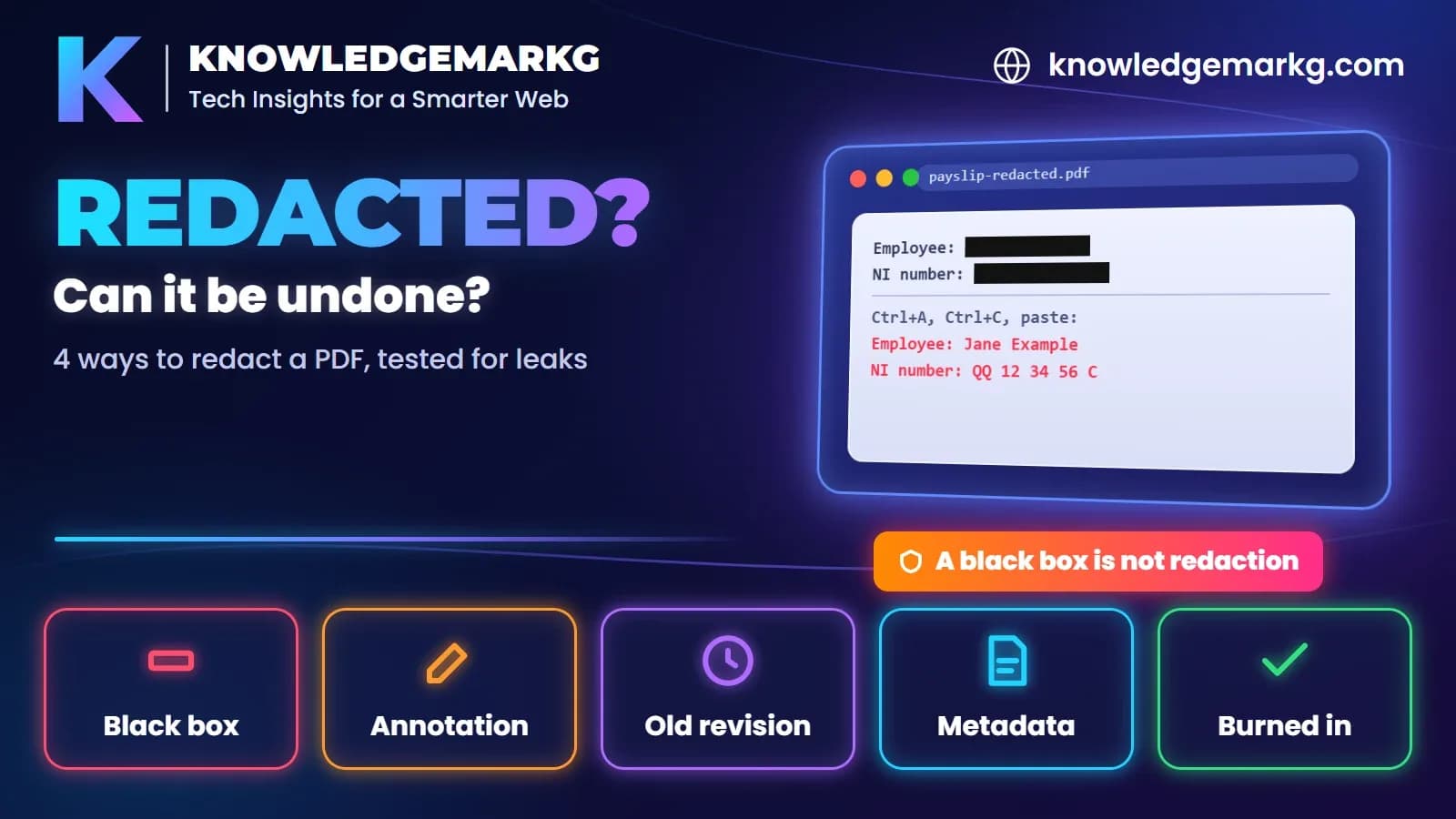
Most "compress PDF to 100 KB" sites upload your file to their server. For a CV that's probably fine. For an ID card, a bank statement or a signed contract, it's worth thinking about. Our tool runs entirely in your browser: the PDF never leaves your device, which is also why it finished each file in a second or two. If you want to see what a PDF gives away besides its size, this test of redacted PDFs is a good example of what can survive inside one.
Quick checklist: Compress a PDF to 100KB, 200KB or 500KB
- Scan: redraw as images, 72 DPI, quality 50%. Go lower only if you must.
- Text PDF: lossless only. Shrink pictures in the source and export again.
- Rescan in greyscale or black and white at 150 to 200 DPI if you can.
- Check readability at full zoom before uploading.
- Too many pages for the limit: split or remove pages.
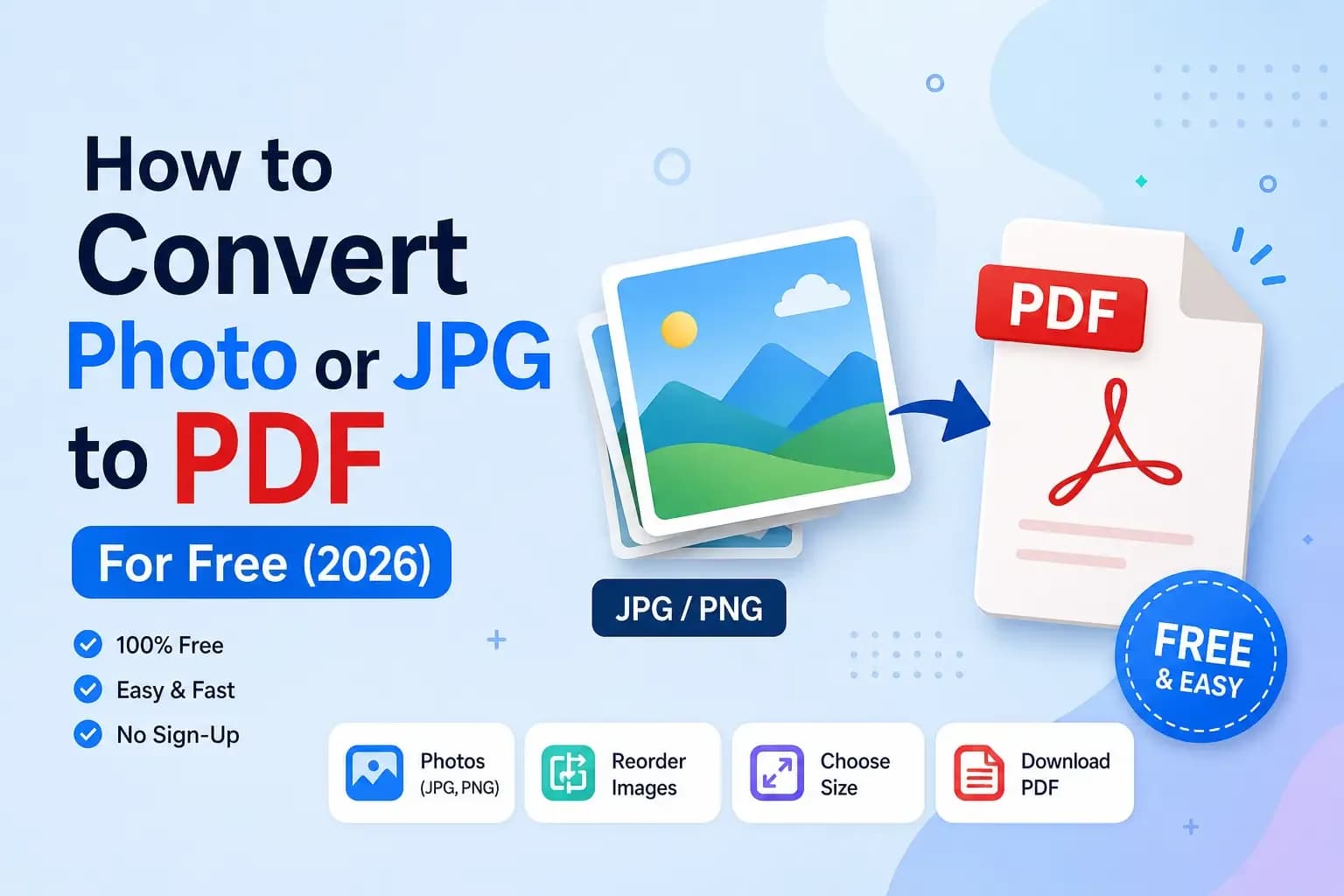
- Making a PDF from photos? Resize the photos first, then use image to PDF (how to convert a photo to PDF).
Join the conversation
No comments yet — be the first to share what you think.